
Downloading the BCS
Your download will start automatically…
Save the Download
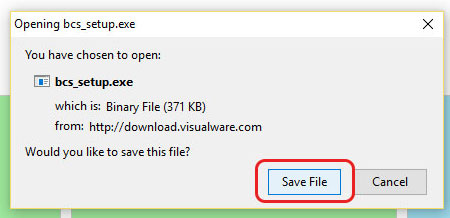
When the dialog appears, click Save File to download.
Open your download folder to view the executable.
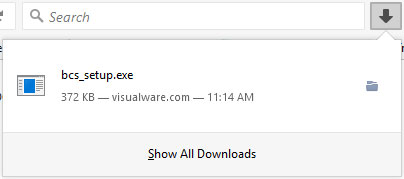
Locate the Download
The installation file is downloading. Click Show in Folder to view it.
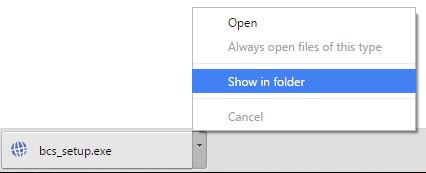
Locate the Download
The installation file is downloading.

Click Open Folder to view the file.

Save the Download
Your download is about to start. Click Save on the bottom bar.

Click Open Folder to view the file.

Locate the Download
The installation file is downloading to your Downloads folder.
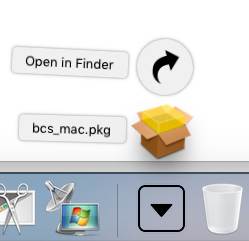
Open the Downloads folder in Finder.
Locate the Download
The installation file is downloading. When complete, choose Show in Finder.
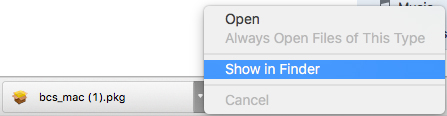
Locate the Download
The app is downloading to your Downloads folder.
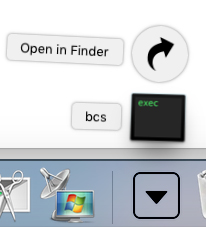
Open the Downloads folder in Finder.
Locate the Download
The installation file is downloading. When complete, choose Show in Finder.
Download Started
We couldn't recognize your browser to offer tailored download help.
The download should either start automatically or offer you the chance to save or run the file. Once complete, proceed to installation below.
For more help, visit the support page.
Install on Windows
Right-click the downloaded file and choose Run as Administrator.

Click Next to continue.

Click Agree to accept the terms and conditions.

Choose whether to start the BCS automatically. We recommend this.

Click Install.

Click Close to complete the installation.

Install on Mac (Service)
Double-click the DMG file to mount the disk image.

Click the Disk Image to reveal the install PKG file.

Right-click (control-click) the bcs_mac.pkg file and click Open.

Click Open on the popup dialog.

Click Install for me only if available, then click Continue.
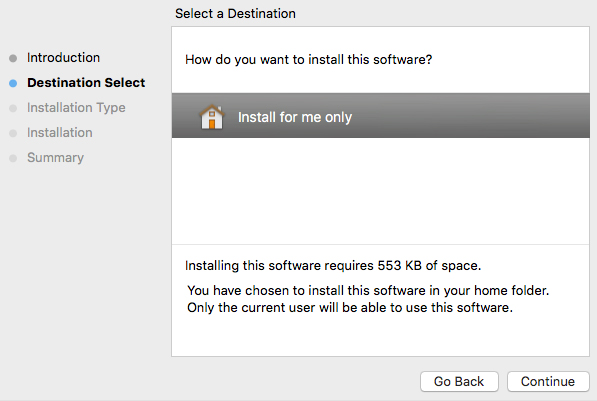
Click the Install button.
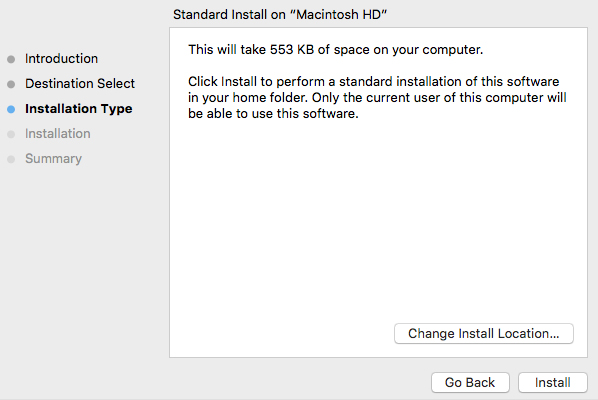
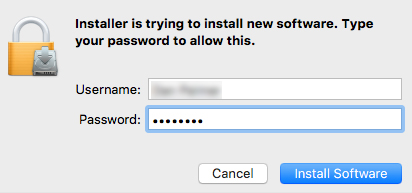
Enter your password then click Install Software.
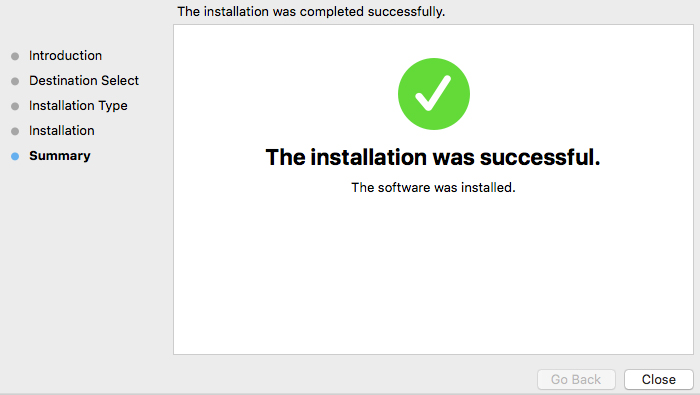
Once the installation has completed, click Close.
Install on Mac (App)
Right-click the downloaded app and choose Open.

Click the Open button.

Download Started
Your Linux download is in progress. For installation help, see the Linux install guide.